Before you start
You need three things: the IBO Player application on your device, a broadband connection of 15 Mbps or better, and the activation email DovoTV sent when your order cleared. That email contains your streaming line or your Xtream Codes username, password and portal URL. If it has not arrived, check the junk folder before contacting support.
One point worth being direct about: IBO Player uses remote playlist activation. You do not type your credentials into the television. You register the device once on the IBO Player portal, attach the playlist there, and the app collects it. It feels unusual the first time and it is the single most common source of confusion, so take the sequence below in order.
One device per subscription. A DovoTV line streams on one screen at a time. You may install IBO Player on several devices, but only one can be playing.
Step 1 — install IBO Player on your device
Pick the section matching your hardware. The end state is identical: the app installed and open, sitting on its welcome screen.
Amazon Fire TV Stick and Fire TV Cube
-
Install the Downloader utility
From the Fire TV home screen, open the search magnifier and type Downloader. Select the orange Downloader app and install it. This tool lets the stick install applications that are not in the Amazon storefront.
-
Allow installations from Downloader
Go to Settings › My Fire TV › Developer Options › Install Unknown Apps and switch Downloader to ON. If Developer Options is not visible, open Settings › My Fire TV › About, highlight your device name and press OK seven times.
-
Download IBO Player
Open Downloader, select the address field and enter the official IBO Player download code 511693, then press Go. Leave the stick alone while the file transfers.
-
Install and open
Confirm the install prompts, then choose Open. Accept the introductory message on first launch. The app is now ready for a playlist.
Android phones, tablets and TV boxes
-
Download the installer
Fetch the IBO Player installation file from the developer's official site using the device browser. Android will warn that the file originates outside the Play Store — choose Download anyway.
-
Open and install
Tap the downloaded file, grant the one-time install permission if prompted, and confirm. Installation takes a few seconds.
-
Launch and acknowledge the intro screen
The first launch shows a short explanatory page describing the playlist process. Tap OK and leave the app on its main dashboard.
Samsung and LG smart TVs
-
Open the TV's app store
On LG that is the Content Store; on Samsung it is the Apps panel. Both are reachable from the home bar on the remote.
-
Search for the app
Use the magnifier and type IBO Player. Several similarly named listings appear — select the one titled exactly "IBO Player" and ignore the imitations.
-
Install and launch
Choose Install, then Launch. A welcome message appears on the first run; dismiss it and the app is ready.
Windows 10 / 11 and macOS
-
Windows
Download the 64-bit Windows installer. Windows SmartScreen will interrupt because the file came from outside the Microsoft Store — click More info, then Run anyway, and step through Next, Next, Install, Finish.
-
macOS
Download the macOS build, open the disk image and drag the icon into Applications. On first launch macOS blocks it; open System Settings › Privacy & Security, scroll to the security notice and choose Open Anyway. The exception is permanent.
MAG, Formuler and other set-top boxes
Formuler and Android-based boxes install the Android build exactly as described above. Classic MAG boxes running the stalker portal are provisioned differently: send us the MAC address printed on the underside of the unit and we will attach your DovoTV line to it directly. Message the team through the contact page and allow a few minutes.
Step 2 — read your device information
With IBO Player open, select the person icon on the main dashboard. The panel in the top left is Device Info and contains two values you need: the MAC address and the device key. Write them down or photograph the screen.
Step 3 — register on the playlist portal
On a phone or computer, open the IBO Player playlist management portal and choose Manage Playlist. Enter the MAC address and device key from the previous step and log in. You are now looking at the playlist record for that specific television.
Step 4 — attach your DovoTV playlist
There are two routes, and your activation email tells you which one applies. Both take under a minute.
Option A — add a playlist (M3U streaming line)
- Playlist name: anything memorable — "DovoTV" works.
- Playlist URL: paste the long streaming line from your activation email exactly, with no trailing space.
- XMLTV EPG URL: leave empty. IBO Player pulls guide data from the playlist itself, which is what you want.
- Protect this playlist: optional PIN if children use the television.
Option B — add an Xtream Codes playlist
- Portal / server URL: the host address from your email.
- Username and password: exactly as issued, case-sensitive.
Press Save. That is the configuration complete.
Step 5 — reload the app and start watching
Return to the television, close IBO Player completely and reopen it. The channel list, the program guide and the on-demand shelves populate on their own. First load can take thirty seconds because the full 22,000-channel index is being fetched; it is instant on every launch afterwards.
Making the guide usable
Twenty-two thousand channels is unwieldy until you trim it. Inside IBO Player, Settings › Manage Categories lets you hide entire bouquets you will never open — most American households switch off the Arabic, South Asian and Nordic groups and keep the guide down to a few hundred relevant entries. Adding favourites with the star control builds a personal front page. The channel lineup page shows which categories exist before you start pruning.
Two more settings worth visiting on day one: Parental Control, which PIN-locks categories, and Auto boot on start, which launches IBO Player the moment the television powers up — the closest thing to a cable box experience.
Supported hardware
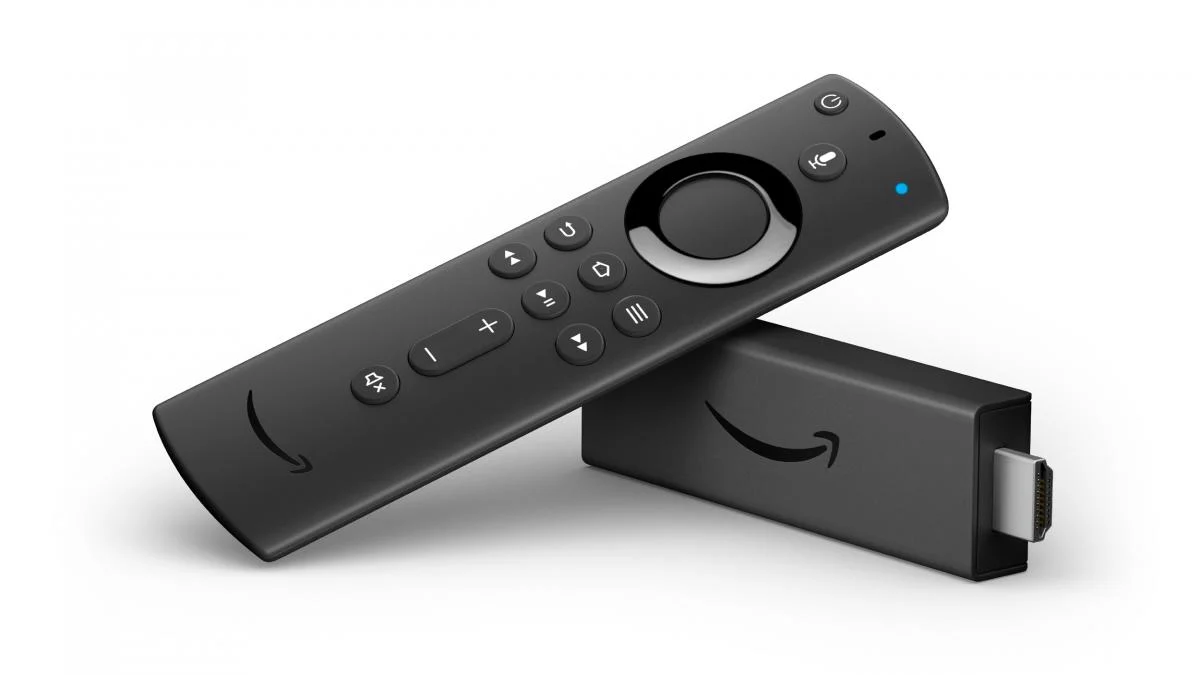 Fire TV StickSideload via Downloader
 Apple TVApp Store install
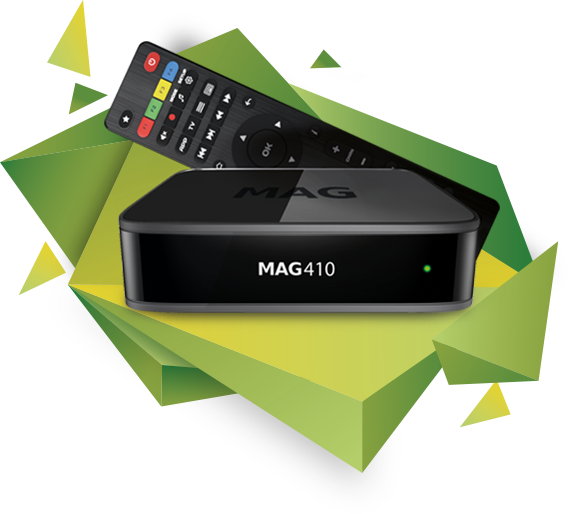 MAG set-top boxMAC provisioning
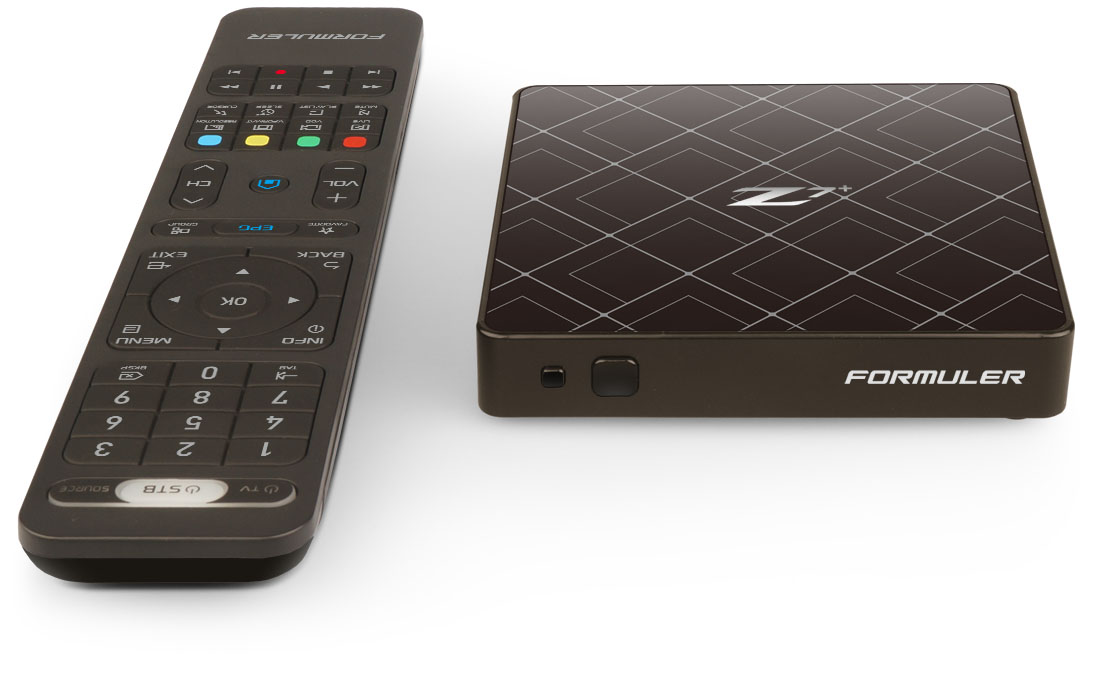 FormulerAndroid build
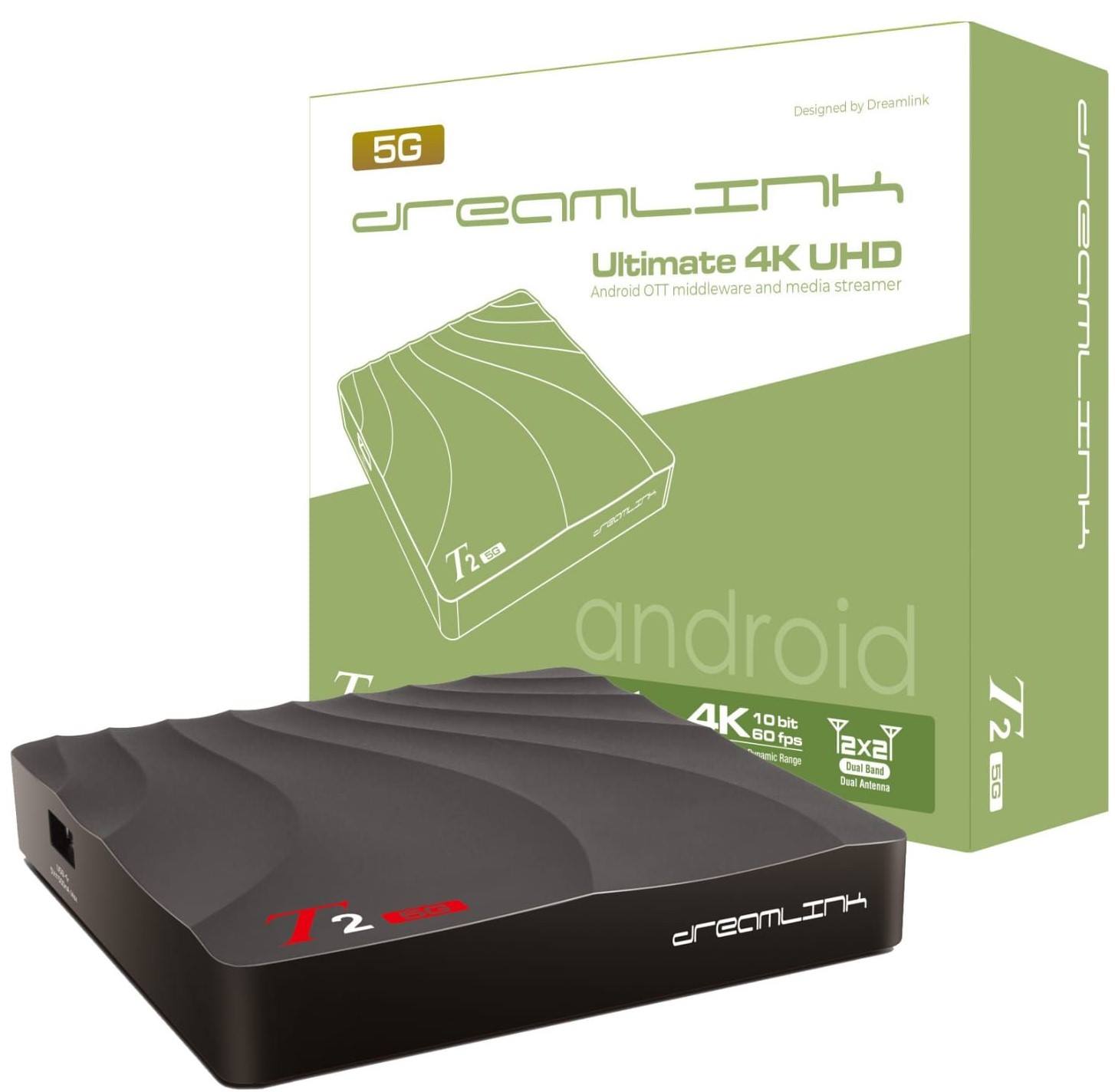 Android TV boxDirect install
Stuck at any step? The troubleshooting center covers the three faults that account for most support tickets, and the FAQ answers the device and speed questions. If neither helps, message us — we would rather walk you through it than have you guess.
Ready to put this into practice?
Order the introductory month for $8.99 and your credentials land on WhatsApp while you are still reading this page.